Setting Transactions to Test or Production Status
The Transaction Setup page displays a list of all the transactions available for a specific trading partner's EPP, allowing you to select between test and production mode status for specific types of transactions. Before production transactions are sent, test transactions would be sent to verify that everything is working correctly.
|
NOTE This setting affects all of the transactions in the Outbox for the selected trading partner. |
Single Transaction Type
To change a single transaction type:
-
Select a trading partner for editing.
-
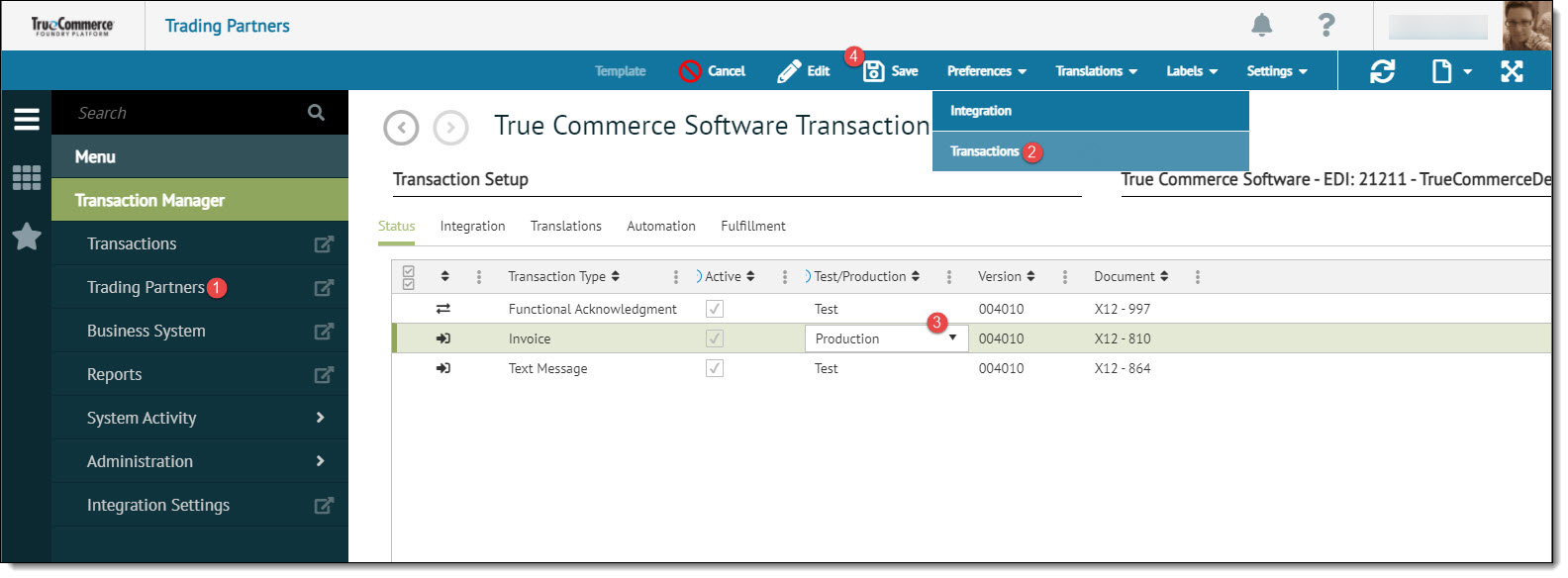
Select Preferences on the action bar and then select Transactions from the dropdown options. The Transaction Setup grid displays in the Trading Partners workspace.
-
Under the Status tab, choose Test or Production in the Test/Production dropdown field for the specific transaction type.
-
Select Save on the action bar to save your changes.
Multiple Transaction Types
To change multiple transaction types:
-
Select a trading partner for editing.
-
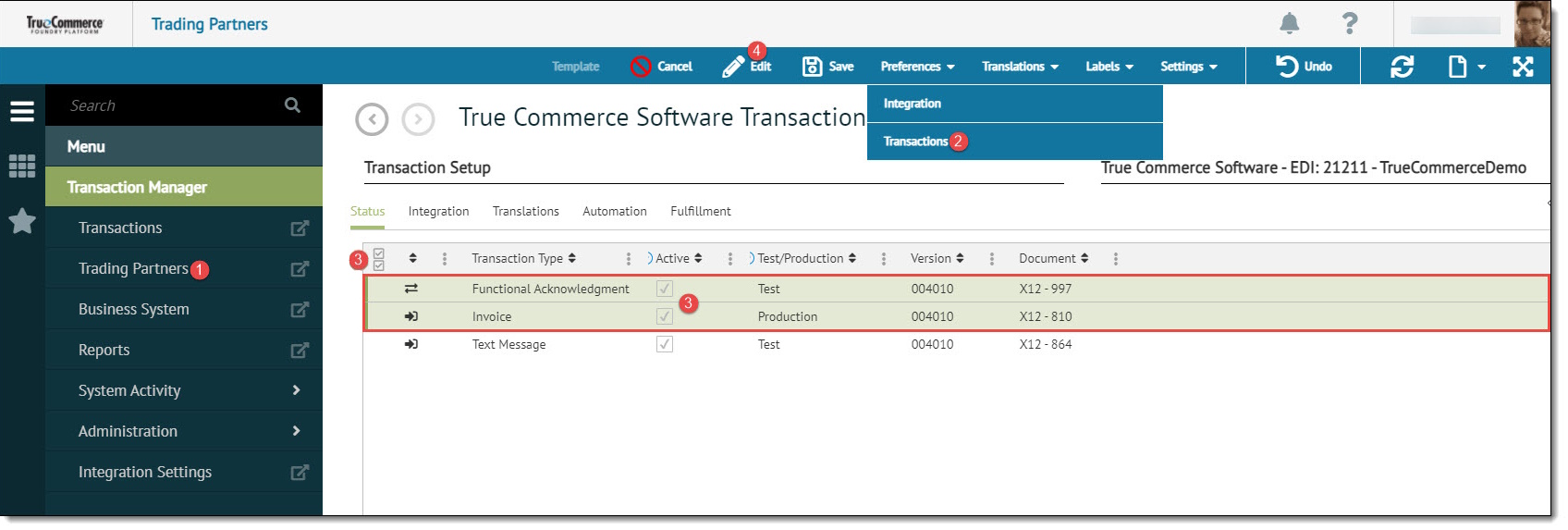
Select Preferences on the action bar and then select Transactions from the dropdown options. The Transaction Setup grid displays in the Trading Partners workspace.
-
On the Transaction Setup page, hold down the Shift key on your computer keyboard while selecting multiple transaction type rows. To highlight all transactions on the grid, click the double control on the far left side of the column headings bar. Refer to Selecting Grid Data in the Platform User Guide.
-
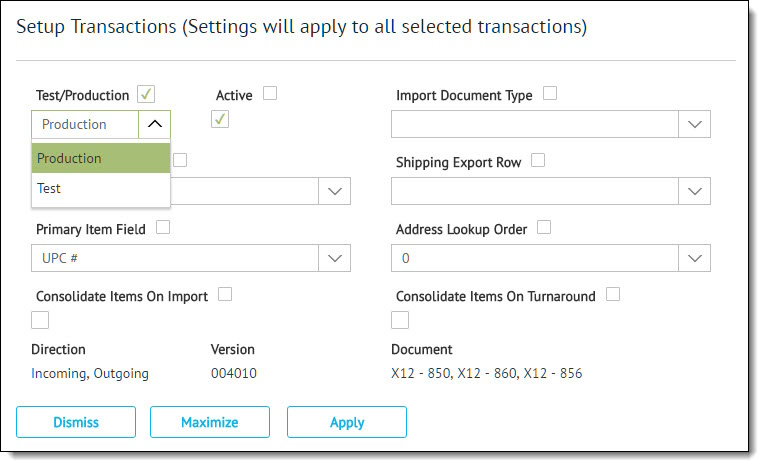
Select Edit on the action bar to edit the selected transactions. The Setup Transactions pop-up window displays.
-
Select the Test/Production checkbox, and then choose Test or Production from the dropdown field.
-
Click the Apply button to apply the change to all selected transaction types.
-
Select Save on the action bar to save your changes.
Related Topics