Defining Parameters for Multiple Partners
If there are multiple accounts for a trading partner in your business system, you will need to set up multiple associations via the Partner List. When there are multiple partner codes available for a trading partner, you will also need to specify which transaction variables (parameters) can be used to identify the partner code (account) your transactions will be created under. This can be a store number, vendor, bill to code, ship to code, and so on.
|
NOTE These steps can be skipped if only one business system code has been set up for the trading partner selected. |
To set parameters for multiple partner accounts:
-
Select a trading partner for editing.
-
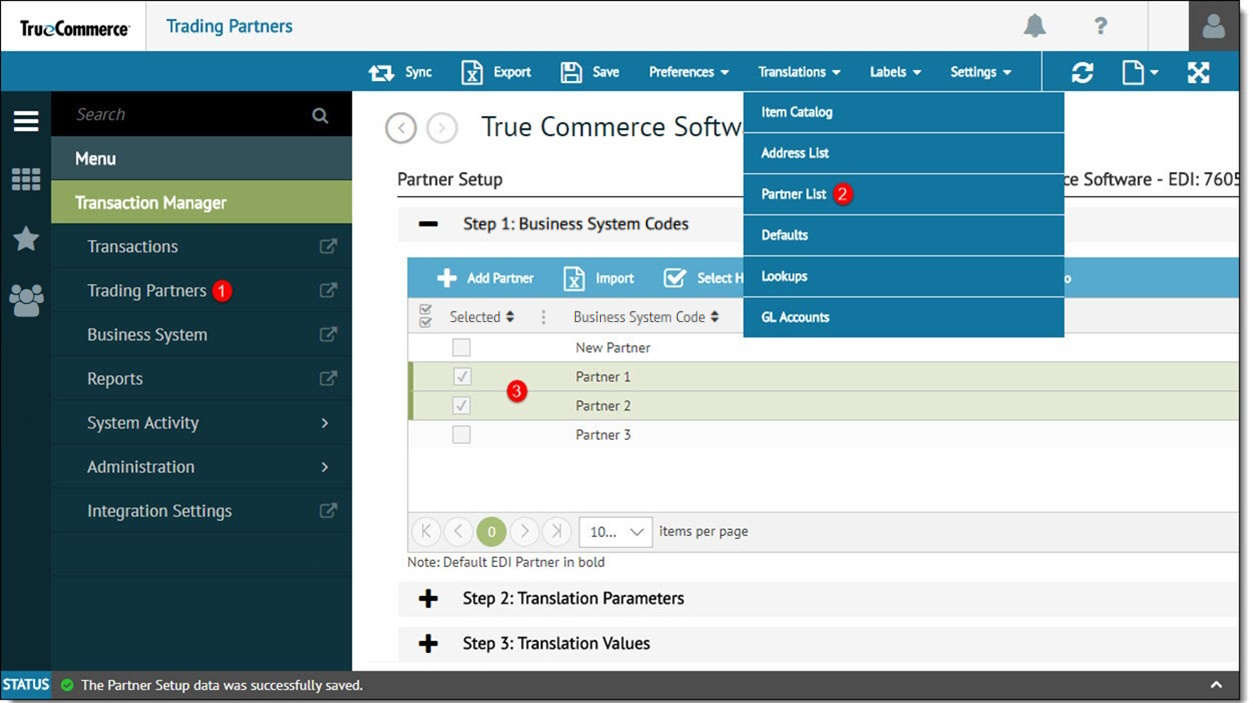
Select Translations on the action bar and then select Partner List from the dropdown options. The Partner Setup table displays in the Trading Partners workspace.
-
Under Step 1: Business System Codes, click Add Partner to add a new record (partner code) for each trading partner account.
NOTE
Step 2: Translation Parameters and Step 3: Translation Values will be enabled when multiple records have been selected under Step 1: Business System Codes.
-
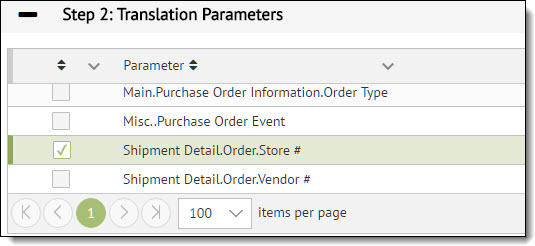
Under Step 2: Translation Parameters, select one or more parameters (store number, vendor, bill to code, ship to code, etc.) that you could use to identify which account is associated with a transaction.
TIP
To help with your selection, you can check which information is being sent consistently on a PO that would be a good candidate for translation parameter.
-
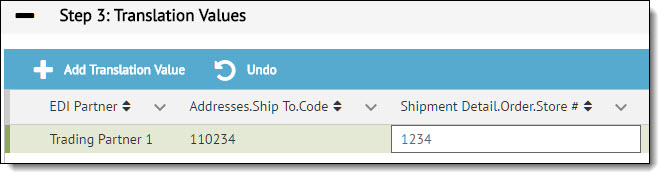
Under Step 3: Translation Values, select the partner account and then enter the appropriate values for the chosen translation parameters. More than one parameter and value can be used per partner account.
-
Select Save on the action bar to save your changes.
Note that you can use the Export function to help with partner setup, particularly when several parameters and values are in use.
Default Partner Code
There is also the option to set one of the partner records as default so that only that account will be used when creating transactions for export. Select a partner account code from the list under Step 1: Business System Codes, and then click Default on the action bar. The list shows the default partner/code in bold. Select Save on the action bar to save your changes.
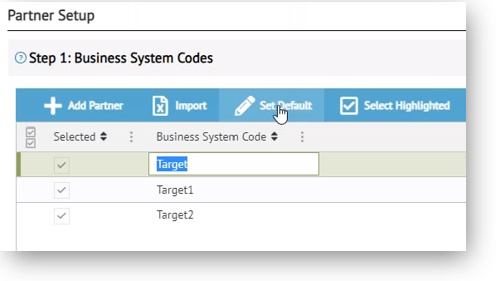
Once a default is selected, the Default control toggles to Remove Default in case you want to change this setting.
Related Topics