Synchronizing Item Identifiers
The Item Catalog Sync control can be used to retrieve item identifiers by reaching out to an integrated Enterprise Resource Planning (ERP) or business system via direct-link or framework connection. Synchronizing records using this feature is more accurate than manually filling them out in the table.
|
NOTE This feature only works for systems that are directly connected. For flat-file integration, you will need to fill out the catalog manually. |
To synchronize item Identifiers:
-
Select a trading partner for editing.
-
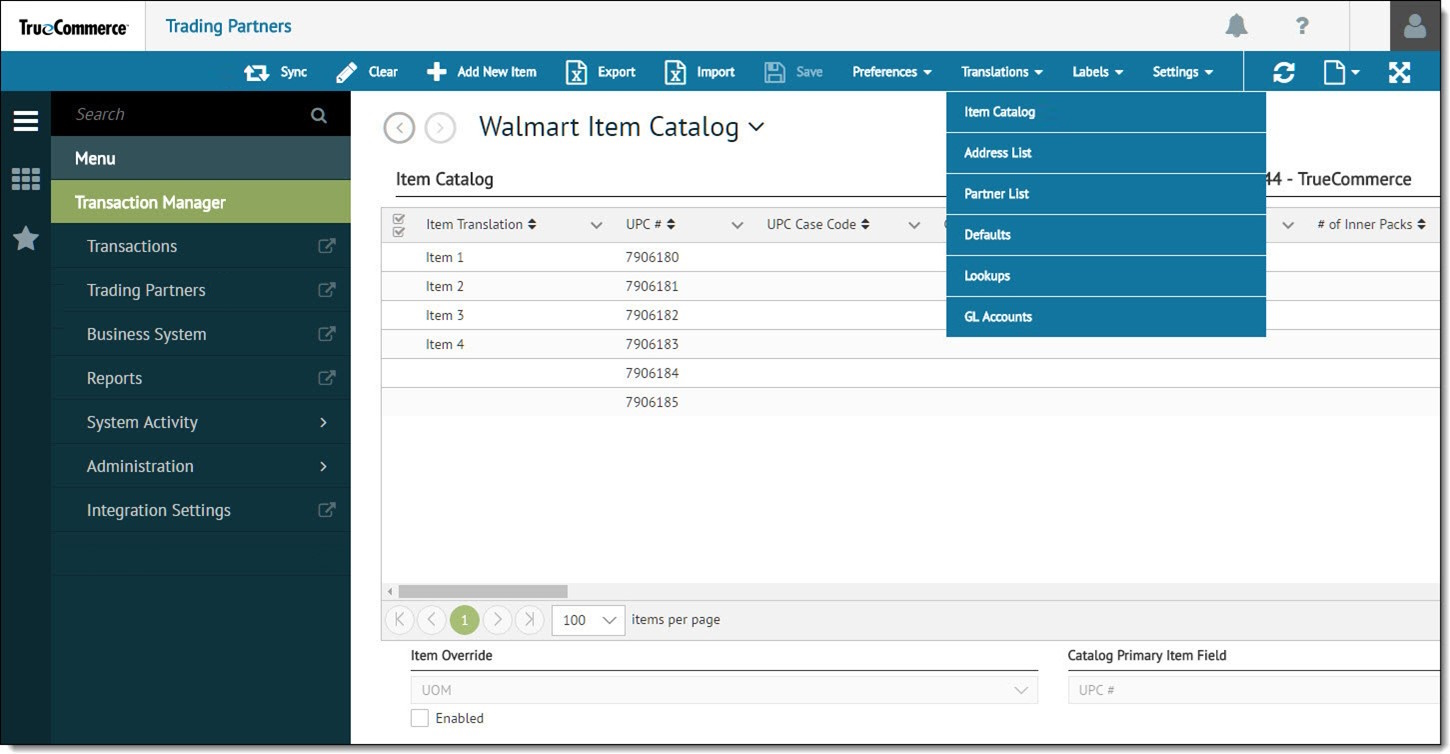
Select Translations on the action bar and then select Item Catalog from the dropdown options. The Item Catalog displays in the Trading Partners workspace.
-
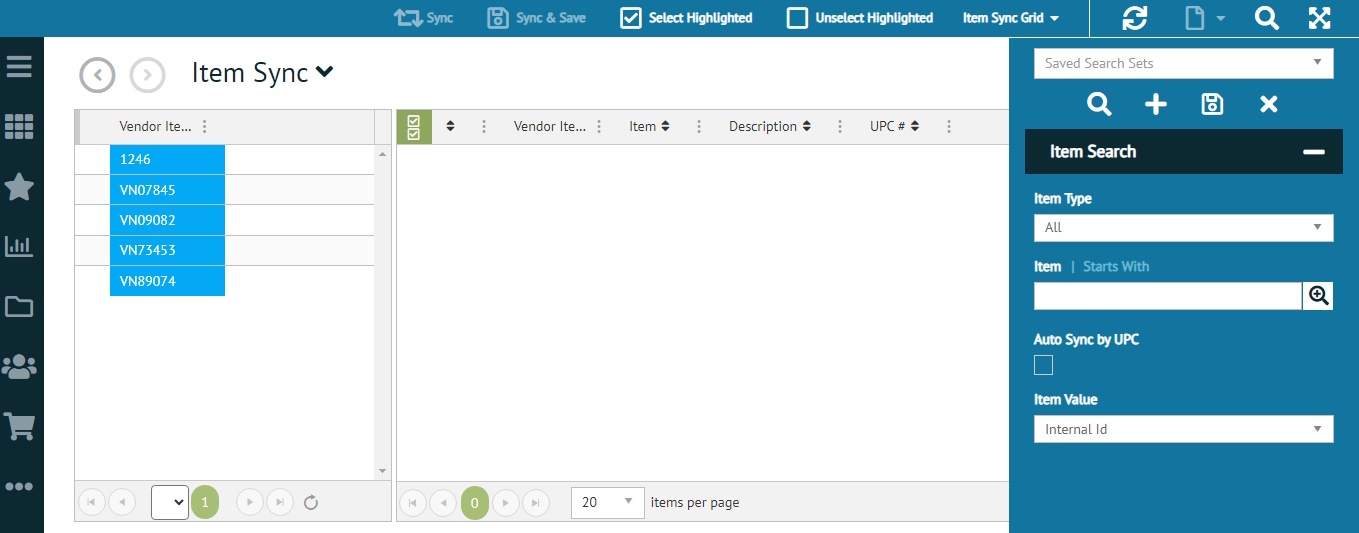
Click the Sync control on the action bar to launch the Item Sync page. The split grid lists trading partner item IDs on the left and ERP item IDs on the right.
-
To retrieve ERP item IDs for synchronization, use the Item Search fields in the search panel to define your search criteria. The default for Item Type retrieves All items if no other criteria is applied.
-
Click the control inside the search panel to apply the search. The item IDs retrieved from the ERP reflect your search criteria. To learn more about the Foundry Search Panel, refer to the Platform User Guide.
NOTE
Item list retrieval can take some time if the business system has a large number of items listed or if the business system is not open. Although all item can be retrieved, using more precise search criteria and having the business system open can reduce display time dramatically.
-
To align a Transaction Manager item ID with an imported ID, drag and drop from the left to the appropriate record on the right.
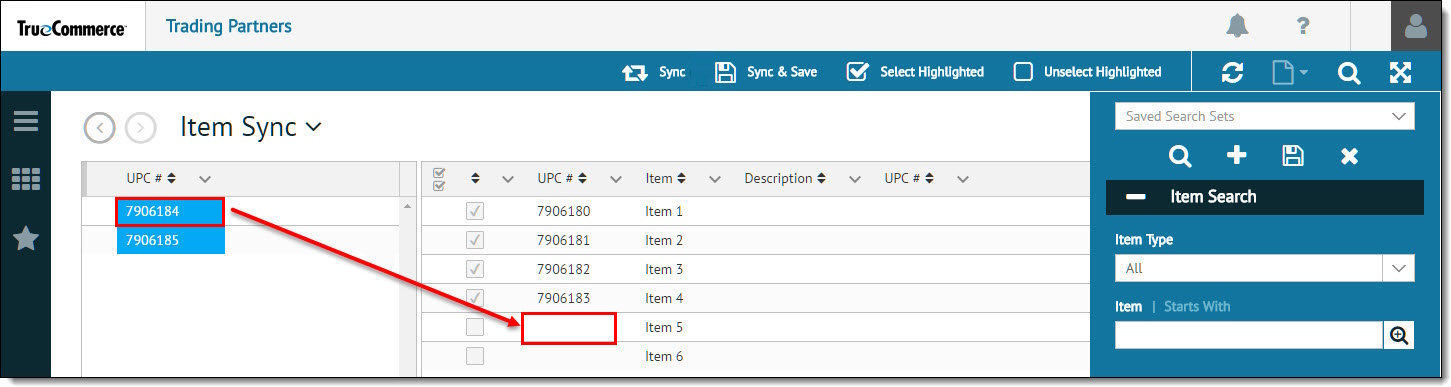
The synced items will show the trading partner's item ID attached to your ERP item ID.NOTE
If you have not received items from your trading partner yet, the list on the left may be incomplete. You have the option to select the checkbox for each item you want to bring over from the ERP's list and then fill out the codes manually when they are available
-
Once your data has been aligned, click Sync & Save on the action bar to save and exit the Item Sync page.
Related Topics